
WCAG Criteria
Keyboard Accessibility: What WCAG Requires and How Audits Test It
A practical guide to keyboard accessibility in WCAG audits, covering keyboard operation, focus order, no keyboard traps, shortcuts, evidence, remediation, and retesting.
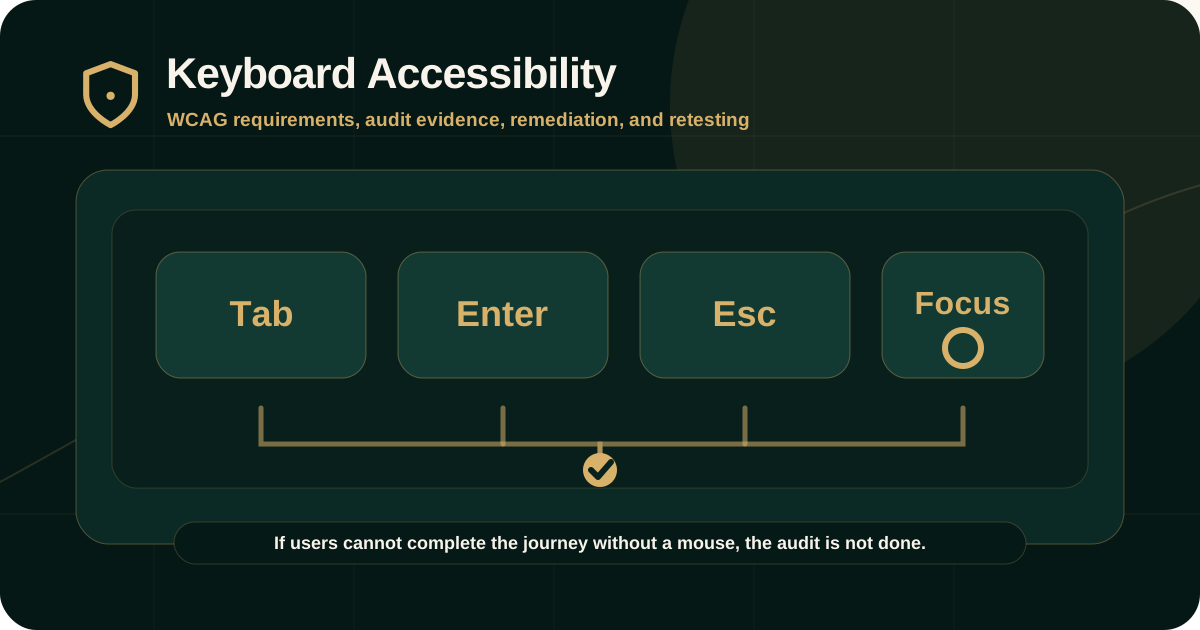
Quick answer: what does WCAG require for keyboard accessibility?
WCAG requires users to be able to operate functionality through a keyboard interface where the underlying function does not require path-dependent movement. It also requires that keyboard focus does not trap users and that keyboard shortcuts, focus order, and focus visibility do not create barriers.
In an accessibility audit, keyboard accessibility is tested manually because automated tools cannot reliably verify whether a real user can move through a workflow, operate controls, escape components, and complete the task.
Why keyboard accessibility matters
Keyboard access is essential for people who cannot use a mouse, people using switch devices, screen reader users, power users, and users with temporary injuries or motor impairments.
A page may look polished and still fail if users cannot reach controls, see where focus is, open and close components, submit forms, or recover from modals and menus using only the keyboard.
- Keyboard users need to reach every interactive control.
- Focus order should follow the visual and logical task flow.
- Controls should work with expected keys such as Tab, Shift+Tab, Enter, Space, Escape, and arrow keys where appropriate.
- Users should not become trapped inside modals, embedded content, menus, widgets, or custom controls.
- The current focus location should be visible and not hidden behind sticky headers, overlays, or offscreen movement.
Core WCAG success criteria auditors check
Keyboard accessibility is not only one criterion. It connects to several WCAG success criteria under Operable, Navigable, Input Modalities, and Robust implementation.
The exact mapping depends on the issue, but the criteria below are commonly involved in keyboard findings.
- 2.1.1 Keyboard: functionality should be operable through a keyboard interface except where the underlying function requires path-dependent input.
- 2.1.2 No Keyboard Trap: users must be able to move focus away from components using keyboard methods.
- 2.1.4 Character Key Shortcuts: single-character shortcuts need a way to turn off, remap, or limit activation to focused components.
- 2.4.3 Focus Order: focus should move in an order that preserves meaning and operability.
- 2.4.7 Focus Visible: keyboard focus should be visible.
- 2.4.11 Focus Not Obscured: WCAG 2.2 AA adds requirements around focus not being hidden by authored content.
- 4.1.2 Name, Role, Value: custom controls need programmatic information that supports keyboard and assistive technology use.
How auditors test keyboard operation
Keyboard testing starts with the actual user journey. Auditors move through the page or application without a mouse and test whether the task can be completed.
This should include static pages, forms, dynamic components, authenticated journeys, responsive states, and any custom widgets in scope.
- Use Tab to move forward through interactive controls.
- Use Shift+Tab to move backward.
- Use Enter and Space to activate buttons, links, checkboxes, menu items, and controls where appropriate.
- Use Escape to close dialogs, menus, popovers, or overlays where expected.
- Use arrow keys for components that follow composite-widget patterns such as menus, tabs, radio groups, sliders, or listboxes.
- Test keyboard behavior before and after validation errors, dynamic updates, route changes, and modal interactions.
What counts as a keyboard failure
A keyboard failure occurs when keyboard users cannot complete the same task that mouse users can complete, or when they can technically proceed but the experience becomes unreliable, confusing, or unsafe.
The most serious failures are usually in core journeys such as login, account management, search, checkout, applications, government forms, investor workflows, support requests, and document downloads.
- A button, link, form field, menu item, or custom control cannot receive keyboard focus.
- A control receives focus but cannot be activated by keyboard.
- Focus disappears, jumps unexpectedly, or moves behind visible content.
- A modal opens but focus does not move into it or does not return to the trigger after close.
- A menu, carousel, date picker, editor, map, or embedded widget traps focus.
- Keyboard shortcuts trigger unexpectedly and cannot be disabled, remapped, or limited.
- Drag-and-drop or pointer-only functionality has no keyboard-accessible alternative.
Focus order and focus visibility
Focus order should support the task. It does not always need to match every pixel of visual order, but it should preserve meaning, relationships, and operability.
Focus visibility is equally important. Users must know where they are before they can decide what to do next.
- Focus should follow navigation, content, forms, and actions in a logical sequence.
- Hidden or inactive controls should not receive focus.
- Important controls should not be skipped.
- Focus indicators should be visible against adjacent colors.
- Sticky headers, cookie banners, chat widgets, and overlays should not obscure focused controls.
- Responsive layouts should be tested because focus order can change across breakpoints.
Modals, menus, and dynamic components
Many keyboard failures appear in dynamic components. These issues often do not appear in automated scans, which is why manual testing is required.
Auditors should test components in all important states, not only the default state.
- Dialogs and modals should move focus appropriately when opened.
- Focus should remain within modal content while the modal is active.
- Users should be able to close modals and return focus predictably.
- Menus should open, move, select, and close with expected keyboard behavior.
- Tabs, accordions, carousels, date pickers, comboboxes, and filters should be tested with expected keys.
- Dynamic updates should not steal focus or leave users without context.
What evidence should appear in the audit report
Keyboard findings should be documented with enough evidence for teams to reproduce the issue and verify the fix.
A screenshot alone is usually not enough for keyboard issues because the barrier is interaction-based. Reports should include the keyboard path and component state.
- Affected URL, screen, component, workflow, document, or app state.
- Exact keyboard path such as Tab, Shift+Tab, Enter, Space, Escape, and arrow keys.
- Expected behavior and actual observed behavior.
- WCAG success criterion and level.
- User impact and severity.
- Screenshot or recording where useful.
- Remediation direction and retest method.
How remediation should be planned
Keyboard remediation often requires design, engineering, and QA coordination. The goal is not only to make a single control focusable, but to make the full task operable and predictable.
Fixes should be implemented at the source component or design-system pattern wherever possible.
- Use native HTML controls where possible.
- Avoid repurposing non-interactive elements as controls unless keyboard behavior, name, role, and state are fully implemented.
- Define keyboard behavior for custom widgets before implementation.
- Fix shared components at the design-system level.
- Retest all important states, breakpoints, and error conditions.
- Document remaining limitations and vendor dependencies.
Retesting keyboard fixes
Retesting should use the same keyboard path that revealed the original issue. A code merge or design update is not enough to close the finding.
The retest record should explain whether the issue is fixed, partially fixed, not fixed, deferred, unable to verify, or out of scope.
- Original finding ID and component state.
- Retested keyboard path.
- Browser, device, viewport, and environment.
- Retest result and remaining risk.
- Evidence of corrected behavior.
- Follow-up action for partial fixes or regressions.
Common mistakes to avoid
Keyboard accessibility problems often survive because teams test only with a mouse or rely only on automated scanning.
Manual keyboard testing should be part of design review, development, QA, audit, and retest.
- Testing only Tab order but not activation with Enter or Space.
- Ignoring Shift+Tab reverse navigation.
- Forgetting Escape behavior in modals, menus, and overlays.
- Testing desktop only and skipping responsive layouts.
- Assuming custom components behave like native controls.
- Closing keyboard issues without retesting the original path.
Practical recommendation
Treat keyboard accessibility as a journey test, not a widget checklist. The audit should confirm whether a user can complete meaningful tasks without a mouse and without losing focus, context, or control.
For compliance-sensitive products, prioritize keyboard issues in login, forms, payment, account management, support, documents, dashboards, and other critical workflows.
Official references used
W3C WCAG 2.2 Quick Reference: https://www.w3.org/WAI/WCAG22/quickref/
W3C WCAG 2.2 Recommendation: https://www.w3.org/TR/WCAG22/
W3C Understanding 2.1.1 Keyboard: https://www.w3.org/WAI/WCAG22/Understanding/keyboard
W3C Understanding 2.1.2 No Keyboard Trap: https://www.w3.org/WAI/WCAG22/Understanding/no-keyboard-trap
W3C Understanding 2.4.7 Focus Visible: https://www.w3.org/WAI/WCAG22/Understanding/focus-visible